Local Default
Windows’ built-in text recognition reads your selection on your PC. The image never leaves it, and it costs nothing.
Press Ctrl Shift 2, drag over any text you can see, then paste it. Paused videos, screen shares, scanned letters, error boxes that won’t let you select a thing. Yoink copies the words for you.
You’re not on Windows right now. Yoink runs on Windows 11 PCs, so save the installer for one.
Step 1 of 3
Brown butter shortbread
Bake at 160 °C fan for 22 minutes
Saturday:
Drag across the recipe to try it, or
Illustrative demo. It reads this page’s own text, not your screen.
Yoink waits in the system tray. Ctrl Shift 2 starts a capture from any app. Prefer another key? Change it in Settings.

Draw a box round the words. It works across monitors with different display scales. Change your mind? Press Esc.

A small pill shows Yoink reading, then Copied. The text is on your clipboard. Press Ctrl V.
Recordings come from the real app. Timing is illustrative; reading speed depends on your PC and the image.
Pick an example and watch Yoink take the text.
A scan is a picture of text. Yoink reads the picture, so the reference goes straight into the form. Open a multi-page PDF and it reads every page.
Error boxes rarely let you select the code. Drag over it and paste it into a search.
Someone sent a screenshot, not the numbers. Copy the row and paste it where you need it.
Yoink decodes QR codes and barcodes on your PC too. The link lands on your clipboard. Yoink opens web links only if you turn that on.
Illustrative examples with made-up details. The QR code is real and points to example.com.
Every capture goes into a history on your PC. Search it, pin what matters, fix a word, copy it again or export it.
Start a capture from the window as well as the shortcut.

Windows’ built-in text recognition reads your selection on your PC. The image never leaves it, and it costs nothing.
Turn it on with your own OpenAI API key. Yoink then sends the area you select to OpenAI, and OpenAI charges your account for each read. Yoink has no key of its own and none comes with the download.
Yoink follows your Windows light or dark mode and your accent colour. Want your own? Pick a tint in Settings.
This page picks up the accent too.
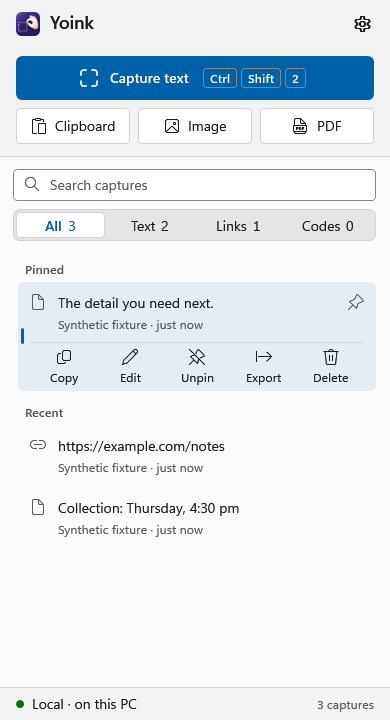
Open an image or a multi-page PDF and read the lot.
Copied a screenshot already? Read it straight from the clipboard.
Decoded on your PC and saved with your other captures.
Select across screens with different display scales.
Uses the text recognition languages installed in Windows, chosen for you or by you.
Keep the original lines, or join them into paragraphs.
Lives in the tray. Start it when you sign in, if you like.
Installs for your Windows account only.
Settings, history and pins survive a new version.
33f60983ed22dcbfc8a27e74054561e8da2bed505d54f024579ee48616759ae2The installer isn’t signed yet. Microsoft publisher verification is pending. Until it’s done, SmartScreen may say “Windows protected your PC”. Select More info, then Run anyway.
To check you have the real file, compare its SHA-256 in PowerShell:
Get-FileHash .\Yoink-0.1.5-win-x64-Setup.exeUpdating? Quit Yoink from its tray menu, then run the new installer. Your settings and history stay put.
Yes. There’s no price, account or subscription. Local recognition costs nothing. The optional OpenAI mode uses your own API key, and OpenAI bills you for that use.
Not in Local mode, which is the default. Windows reads the text on your PC. If you switch to OpenAI, Yoink sends only the area you selected to OpenAI. History stays on your PC either way, and Yoink doesn’t keep the screen image after it reads it.
Add a Windows user environment variable named YOINK that holds your OpenAI API key. Then choose OpenAI in Yoink’s Settings, under Recognition. The status bar shows which mode is active. Switch back to Local at any time.
In Local mode, the languages that have text recognition installed in Windows. Yoink can detect the language for you, or you can choose one. To add a language, open Windows Settings, then Time & language, then Language & region.
It depends on the image. Sharp printed text gives the best results. Tiny, blurred, stylised or handwritten text is harder. Check anything important before you rely on it. You can correct a capture in history.
The installer isn’t code-signed yet, and Microsoft publisher verification is still pending. SmartScreen warns about unsigned apps it hasn’t seen often. Check the SHA-256 in the download section, then choose More info and Run anyway.
No. To update, quit Yoink from its tray menu and run the newer installer from this page. Your settings, history and pins carry over.
Yes. Open Settings, then General, then Capture shortcut. New installs start with Ctrl Shift 2.
Yoink is built and tested for Windows 11 on 64-bit (x64) PCs. There’s no Mac or Linux version.
Quit Yoink, then go to Windows Settings, Apps, Installed apps, Yoink, Uninstall. Uninstalling keeps your history and settings in case you come back. To remove them too, delete the %LOCALAPPDATA%\Yoink folder afterwards.